
 MeshLine
How to Compare Website Crawls Over Time to Track Site Health
Learn how to compare website crawls over time, spot new errors and structural drift, and turn repeat crawl diffs into a routine for tracking site health.
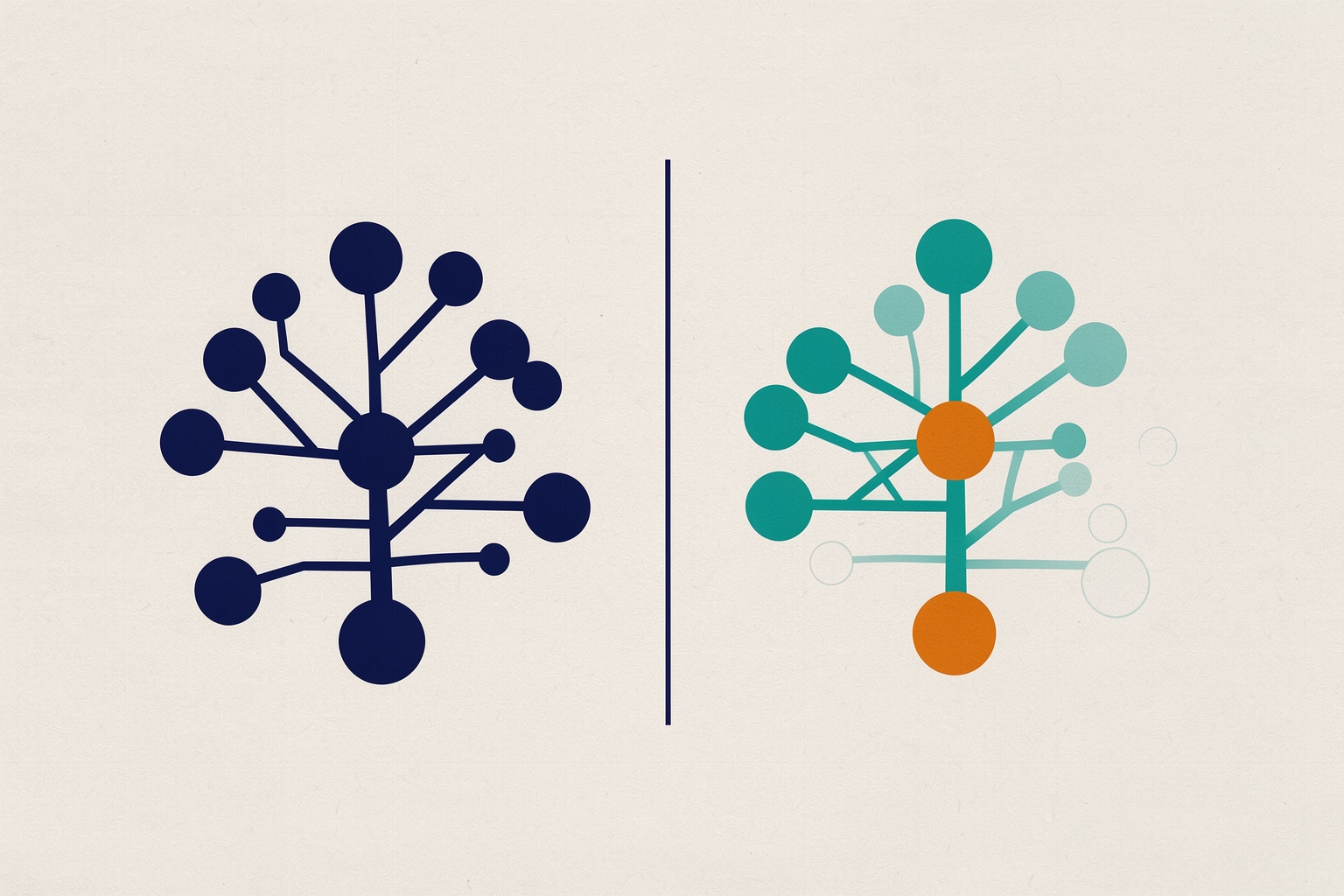
A single crawl tells you what is broken today.
A comparison between two crawls tells you whether your site is getting healthier or quietly slipping.
For operators juggling marketing and revenue systems, that second view is the one that turns technical SEO from a one-off cleanup into a managed process.
This article explains how to compare website crawls over time, which changes deserve attention first, and how to build a repeatable routine around crawl comparisons.
Why crawl comparison beats a standalone audit
A standalone audit answers one question: what issues exist right now?
That is useful, but it has a blind spot.
It cannot tell you whether a problem is new, whether a fix actually worked, or whether the site is drifting in the wrong direction between formal projects.
A crawl comparison answers a different question: what changed since the last crawl?
Screaming Frog describes this directly, noting that comparing crawls shows how data, issues and opportunities have changed over time to track progress and monitor site health.
The vendor documents a crawl comparison feature that identifies changes and tracks technical SEO progress.
It also covers URL mapping for comparing staging against production.
The practical difference shows up in everyday situations.
Suppose a redirect migration shipped last month.
A standalone audit shows the current redirect map.
A comparison shows which URLs gained redirects, which lost them, and whether any previously working pages started returning errors.
That delta is what you take to a standup.
Set up crawls you can actually compare
Comparisons are only meaningful when the inputs match.
Two crawls configured differently will produce differences that look like site changes but are really tool changes.
Before comparing anything, align these settings.
Match the crawl configuration
- Use the same user agent, or at least the same category of user agent, across crawls.
- Keep JavaScript rendering on or off consistently. A rendered crawl and a raw HTML crawl will disagree about content and links.
- Use the same limits, such as maximum URLs, so one crawl does not simply cover more of the site.
- Respect robots.txt the same way each time, or document deliberate exceptions.
If you change configuration between crawls, record it.
A changelog note next to each crawl export saves an afternoon of confusion later.
Choose a sensible cadence
The right interval depends on how often the site changes.
A marketing site with weekly publishing may warrant a monthly comparison.
A mostly static site may only need checks after releases or migrations.
The cadence matters less than consistency: comparing crawls taken under similar conditions is what makes the deltas trustworthy.
For a deeper look at scheduling choices, see our guide to monitoring broken links with scheduled crawls versus manual checks.
What to compare first
A full crawl export contains dozens of data points.
Comparing everything at once produces noise.
Start with the categories where a change usually means something actionable.
Response codes and errors
Compare the set of URLs returning client errors and server errors between crawls.
New errors are the highest-priority delta because they often trace back to a recent deploy, a deleted page that still has internal links, or a broken redirect.
Errors that disappeared confirm a fix landed.
Redirects and redirect chains
Screaming Frog's crawl data includes permanent and temporary redirects, redirect chains and loops.
Comparing these between crawls reveals whether a migration added chains, whether old redirects were cleaned up, and whether any loop crept in.
Redirect chains that grow over time are a classic sign of layered migrations nobody documented.
Indexability and directives
Compare noindex directives, canonical tags and robots.txt-blocked URLs.
A canonical that changed on a money page, or a noindex that appeared after a template update, can quietly remove pages from search.
These changes rarely announce themselves, which is exactly why crawl comparison catches them.
Titles, headings and metadata
The crawl data includes page titles, meta descriptions and headings, flagged for missing, duplicate, long, short or multiple values.
Comparing these shows whether a CMS update or a content refresh introduced duplicates or stripped metadata at scale.
A handful of changed titles is routine; a template-wide shift is a defect.
Site structure and internal linking
Screaming Frog supports analysing site architecture, indexability and crawl depth by directory, plus internal link counts and crawl depth.
Comparing structure between crawls shows whether new sections are reachable.
It also reveals whether key pages gained or lost internal links, and whether their crawl depth is growing.
Rising depth for commercial pages is worth investigating even when nothing is technically broken.
A practical comparison workflow
Here is a repeatable sequence you can run after each scheduled crawl.
- Export both crawls. Keep the previous crawl's export in a shared folder with the date and configuration notes.
- Compare on URL as the key. Match rows by URL so you can see which URLs are new, which disappeared, and which changed status.
- Review new errors first. Every newly broken URL gets an owner and a cause.
- Check directive changes. Diff noindex, canonical and blocked-URL sets.
- Review metadata shifts. Look for scale problems, not individual edits.
- Summarise the delta. A short list of what changed, why it matters and what happens next is more useful than the raw export.
Screaming Frog supports automated Looker Studio crawl reports to monitor site health and detect issues over time.
This can reduce manual export-and-diff work once your comparison routine is stable.
Reading the deltas: what each pattern usually means
Comparison data is only useful when you can interpret it.
These patterns come up repeatedly.
- New errors clustered by directory. Usually points to a template, plugin or deploy affecting one section. Fix at the source, not URL by URL.
- Errors that vanish after a fix. Confirmation the fix worked. Log it so the same fix is not re-proposed later.
- Growing redirect chains. Suggests migrations stacked on migrations. Flatten the chains before the next change.
- New duplicate titles or descriptions. Often a CMS default or template change. Check whether a recent release touched metadata logic.
- Crawl depth increasing for key pages. Internal linking may have thinned out. New navigation or related-content modules can reverse it.
- URL count jumping or dropping sharply. Could be a parameter explosion, a faceted navigation change, or a crawl configuration difference. Verify the configuration before treating it as a site change.
None of these patterns is automatically a problem.
The value of comparison is that it flags the change; interpretation still requires someone who knows the site and its release history.
Comparing staging against production
Crawl comparison is not limited to tracking the same environment over time.
Screaming Frog documents URL mapping for comparing staging against production.
A separate tutorial covers crawling staging websites, covering robots.txt, authentication and configuration.
Before launch, crawl staging, crawl production, and compare the two with URL mapping.
Differences in directives, canonicals, response codes and metadata on staging are far cheaper to fix before they ship.
Our walkthrough on auditing a staging site for SEO before launch covers the surrounding checklist.
Connecting crawl trends to revenue work
For revenue operations leaders, crawl comparisons are most valuable when tied to pages that carry commercial weight.
A new error on a forgotten tag archive is trivia.
The same error on a pricing page or a high-intent landing page is a revenue risk.
Two habits make this connection concrete.
First, tag or segment crawl data by page purpose, such as product, pricing, blog or support, so deltas can be reviewed by business impact rather than alphabetically.
Second, feed confirmed defects into the ticketing or automation workflow your team already uses.
That way technical fixes compete for attention with visible priorities instead of living in a spreadsheet.
Content-level comparisons matter too.
If a crawl comparison shows duplicate or near-duplicate pages appearing over time, that often traces to publishing process issues rather than one-off mistakes.
Our article on finding duplicate content and deciding whether to fix, canonicalize or differentiate covers the follow-up decisions.
Common pitfalls when comparing crawls
- Comparing incompatible configurations. Different rendering settings or URL limits create false deltas. Always diff the config before diffing the data.
- Treating every change as a defect. Titles change because editors improve them. Judge changes against intent, not against a frozen baseline.
- Ignoring disappeared URLs. URLs present last crawl and absent now deserve as much attention as new errors, especially if they had traffic or links.
- Comparing without a record. Undated exports make it impossible to correlate changes with deploys. Date and annotate every crawl.
- Stopping at the technical layer. The point of tracking site health is protecting the pages that drive demand and revenue. Keep the commercial lens in the review.
Making crawl comparison a standing routine
The teams that benefit most from crawl comparison treat it as a lightweight, recurring review rather than a project.
A short monthly cycle: run the crawl under the documented configuration, then diff against the previous export.
Triage new issues by business impact and confirm previously fixed issues stayed fixed.
Then circulate a brief summary with owners and next steps.
Over time, this produces something a standalone audit never can: a running narrative of your site's technical health, tied to the changes that caused it.
That narrative is what lets you argue credibly for preventive work, catch regressions early, and show stakeholders that the site is being managed, not just occasionally cleaned.
Compare crawls to see how data, issues and opportunities have changed over time to track progress and monitor site health.
Start with one comparison between your last two crawls, aligned on configuration and keyed by URL.
The first diff will teach you more about your site's recent history than any single audit report.
Source references: www.screamingfrog.co.uk; www.screamingfrog.co.uk.
How Meshline can help. Connect automation, Organic Marketing (demand generation), and customer lifecycle management (Revenue Intelligence).
Bring topic planning, content publishing and performance feedback into the conversation about your workflow. Book a Meshline demo.