
 MeshLine
Screaming Frog List Mode vs Spider Mode: Which Crawl Fits the Job
Learn when Screaming Frog's spider mode or list mode fits your task, how list mode's crawl depth limit works, and how to verify refreshed pages without a full crawl.
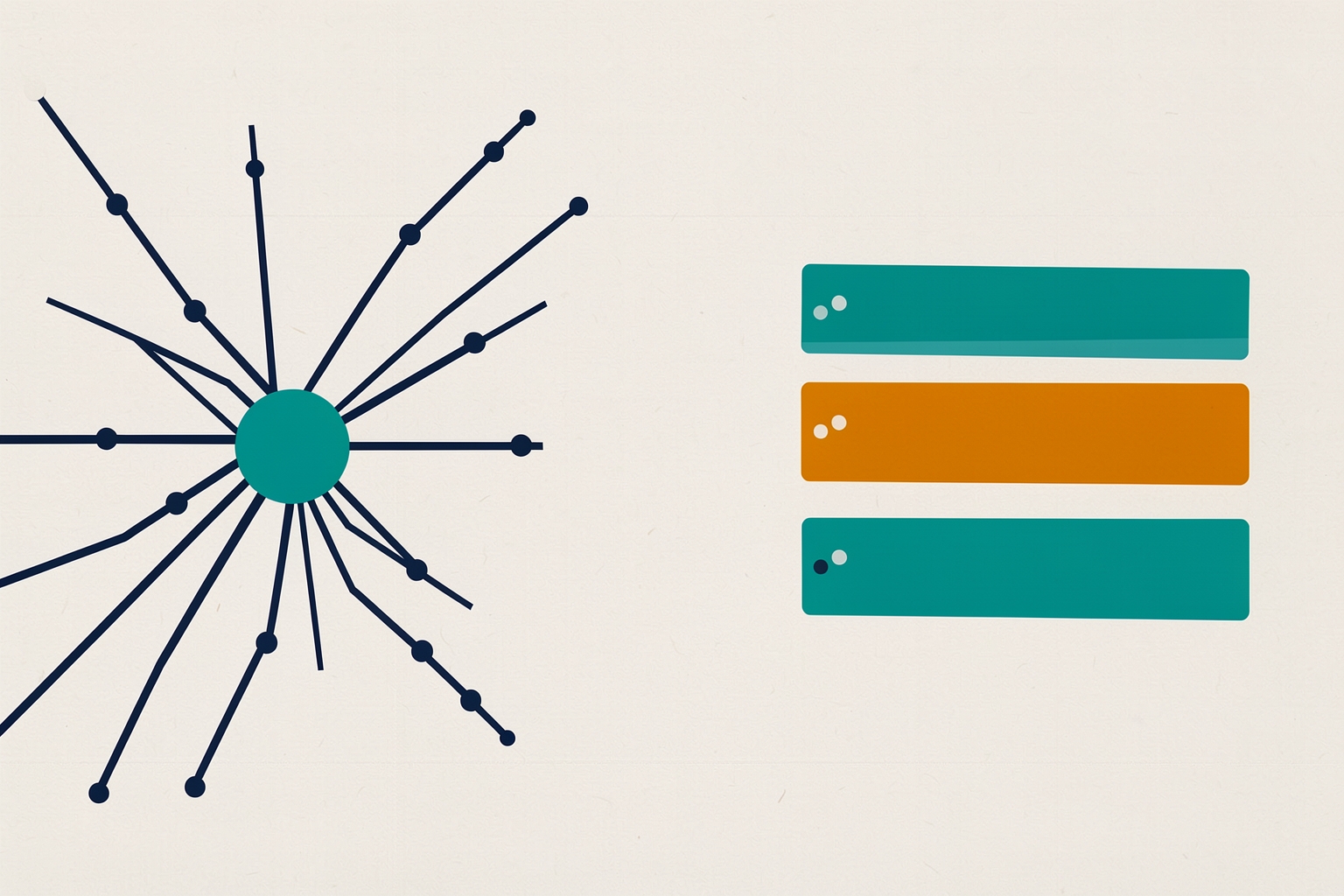
Screaming Frog's SEO Spider has two crawling modes, and picking the wrong one wastes time or leaves you with incomplete data.
Spider mode starts at one address and follows internal links across a site.
List mode crawls only the exact URLs you upload.
Both use the same analysis engine, so the choice is about scope, not capability.
This guide walks through what each mode does and the settings that quietly change your results.
It also covers the everyday jobs each mode fits, including verifying refreshed pages and auditing a migration.
What Spider Mode Does
Spider mode is the default.
You enter a starting URL, and the crawler follows internal links from there, discovering pages the way a search engine bot would.
That makes it the right choice when you want to understand a whole site: its architecture, crawl depth, internal linking, duplicate titles, broken links and orphaned sections.
By default, the SEO Spider respects robots.txt, respects nofollow on internal and external URLs, and crawls canonicals but does not execute JavaScript (Screaming Frog FAQ).
Those defaults matter because they explain why a Screaming Frog crawl may discover a different number of URLs than another crawler.
If your site is built on a JavaScript framework, switch rendering to JavaScript under Configuration > Spider > Rendering.
Also make sure JS and CSS files are not blocked.
Spider mode also has a known blind spot: it cannot discover URLs that are not linked to internally, such as orphan pages or URLs reachable only through external links.
The tool can pull in URLs from Google Analytics, Google Search Console and XML sitemaps as additional discovery sources, but that requires extra setup (Screaming Frog FAQ).
What List Mode Does
List mode flips the discovery model.
Instead of following links, you upload a list of URLs and the crawler fetches exactly those addresses (Screaming Frog list mode tutorial).
Switch to it via Mode > List in the top navigation.
Two things change when you switch:
- The interface swaps the address bar for an upload button. You can upload from a file, paste URLs into a dialog, or download an XML sitemap.
- The crawl depth limit is automatically enabled and set to zero, which means only the URLs you upload will be crawled.
That second point is the important one.
In list mode, the tool will not follow the pages' internal links, images or external links.
It crawls the uploaded URLs and nothing else.
The one exception is JavaScript rendering.
The crawler must fetch page resources to render the page properly in its headless Chrome browser (Screaming Frog list mode tutorial).
Upload Rules That Trip People Up
List mode has a few behaviors worth knowing before your first upload.
Protocol is required
If you paste a URL without http:// or https://, it will not be read.
You will see a message saying zero URLs were found.
Always include the full protocol (Screaming Frog list mode tutorial).
Normalisation and de-duplication
The SEO Spider normalises URLs on upload and de-duplicates during the crawl.
Fragment URLs, the ones with a # in them, are not treated as separate pages.
If you upload the same address twice, the tool reports how many URLs it found, then crawls only the unique ones (Screaming Frog list mode tutorial).
For a short list you can spot duplicates yourself; for a large export from a spreadsheet, this automatic de-duplication saves real time.
Order-preserving exports
If your export must match the order of your original upload, use the Export button next to the upload and start buttons.
Do not use the export button on the data tabs.
That export keeps the original order and includes every uploaded URL, including duplicates and any fix-ups.
The Original URL column shows what you uploaded; the Address column shows what was actually crawled (Screaming Frog list mode tutorial).
When List Mode Fits the Job
List mode shines whenever you already know which URLs matter.
Common situations:
- Verifying refreshed pages. After a content update or a title and meta description rewrite, you usually care about a specific set of templates or landing pages, not the whole site. Upload those URLs and check the elements you changed.
- Migration redirect audits. Upload the old URLs and audit their redirect targets and any redirect chains in one pass, rather than uploading target lists repeatedly (Screaming Frog list mode tutorial).
- Targeted element audits. If a new canonical, hreflang or AMP implementation rolled out on a known set of pages, crawl just those pages and check the element.
- Sitemap-based checks. The SEO Spider does not crawl XML sitemaps by default in spider mode; you currently upload them in list mode (Screaming Frog FAQ). That makes list mode the path for auditing sitemap URLs for errors or indexability.
- Broken link building. Gather all external links from a curated list of pages to find broken outbound links worth pitching replacements for (Screaming Frog list mode tutorial).
One caution on verification: a crawl tells you what the page serves when fetched.
It does not tell you how quickly search engines will recrawl the page or when changes will appear in results.
Treat the crawl as your own confirmation of the live page, not as a signal about indexing speed.
Extending List Mode Beyond the Uploaded URLs
List mode is not limited to bare URL fetches.
With configuration changes, you can crawl your list plus a specific element type.
The default zero crawl depth is what keeps the crawl scoped.
To extend it, go to Config > Spider > Limits and untick the crawl depth limit.
The crawler will then also crawl URLs on the same subdomain that your list links to, so you must control scope through the granular crawl settings.
In Config > Spider > Crawl, disable all resource links and page links, then select the specific element you want, such as images (Screaming Frog list mode tutorial).
This combination lets you audit a list of URLs and their images, or their canonicals, without crawling the entire site.
It is a laser-focused setup, but it depends on getting the configuration right, so check the crawl results to confirm you collected what you intended.
When Spider Mode Fits the Job
Reach for spider mode when the question is about the site as a system rather than a set of known pages:
- Site audits. Finding broken links, duplicate titles, missing meta descriptions, thin content and redirect chains across everything the crawler can reach.
- Architecture review. Analysing crawl depth, internal link counts and directory structure to see whether important pages are buried (Screaming Frog SEO Spider).
- Orphan page analysis. Comparing what the crawl discovers against URLs in analytics, Search Console and sitemaps to find pages that exist but are not linked internally.
- Change tracking over time. The tool's crawl comparison feature compares crawl data to identify changes and track technical SEO progress, including comparing staging against production via URL mapping (Screaming Frog SEO Spider).
Spider mode reflects the natural crawling and indexing process of internal links.
Screaming Frog deliberately avoids crawling sitemaps by default for this reason.
A page that exists only in a sitemap may get indexed, but it will not accumulate real internal link value (Screaming Frog FAQ).
If you want to understand how a site actually performs organically, spider mode mirrors that reality.
Choosing Between the Two: A Practical Rule
Ask one question: do you already know the URLs, or do you need to discover them?
- Known URLs, specific elements, a migration list or a sitemap to check: list mode.
- Unknown scope, whole-site health, linking structure or orphan analysis: spider mode.
There is also a middle path worth knowing.
If you upload a list but want the pages' images or a specific link type included, extend list mode with the configuration described above.
And if you start a spider crawl but only care about a section, you can limit the crawl by directory or depth in the configuration rather than switching modes.
Finally, remember the free version of the SEO Spider is restricted to a 500 URL crawl limit (Screaming Frog FAQ).
For larger sites or long URL lists, check the current pricing page for licence options before planning a full audit.
Common Mistakes to Avoid
- Pasting URLs without a protocol in list mode and wondering why nothing was found.
- Assuming list mode followed links and audited a whole section, when the zero crawl depth meant only the uploaded URLs were fetched.
- Comparing URL counts between Screaming Frog and another crawler without checking configuration differences such as robots.txt handling, nofollow treatment and JavaScript rendering.
- Using the wrong export button in list mode and losing the original upload order you needed for matching against other data.
Both modes run the same checks over titles, headings, directives, canonicals, response codes and more (Screaming Frog SEO Spider).
Once you match the mode to the scope of your question, the rest of the workflow stays the same.
Related reading: see how to opt out of featured snippets and which rule fits each page.
Or compare cloning a workflow versus using a template in your automation stack.
For flow design decisions, our guide on conditional split versus percentage split covers a similar mode-choice question.
How Meshline can help. Connect automation, Organic Marketing (demand generation), and customer lifecycle management (Revenue Intelligence).
Bring topic planning, content publishing and performance feedback into the conversation about your workflow. Book a Meshline demo.