
 MeshLine
When to Split One Workflow Into Multiple Workflows
Learn the practical signs that one automation has grown too complex, and how splitting it into separate workflows makes testing, editing and reporting easier.
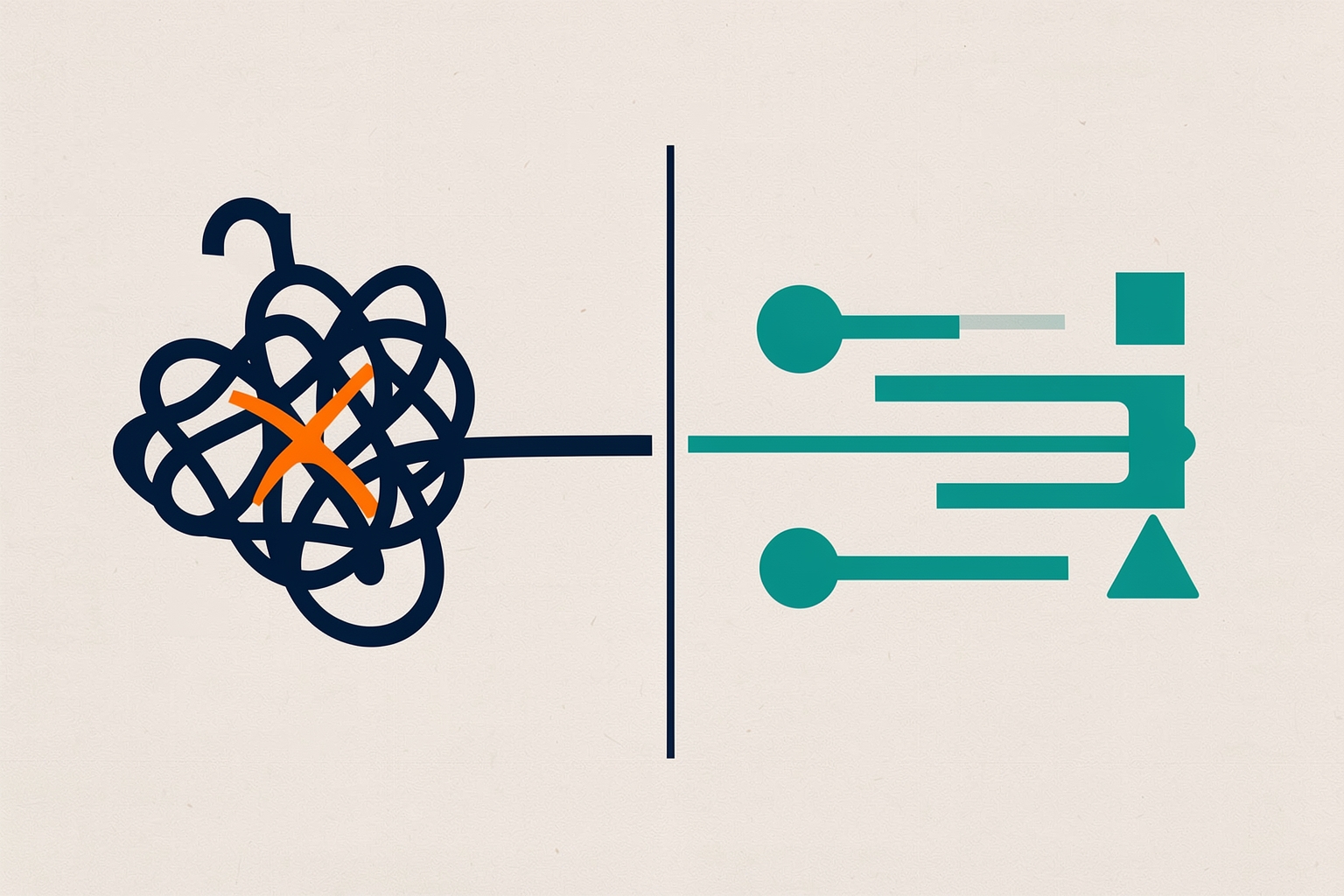
Every automation starts small.
One trigger, a few actions, a delay, done.
Then someone adds a branch for a different region, another for a different product line, and a third for leads that came in through a partner.
Before long, nobody on the team can explain what the workflow actually does.
Knowing when to split one workflow into multiple workflows is a judgment call, but it is not a mysterious one.
There are observable signals: mixed object types, too many enrollment triggers, branches that never get tested, and edits that keep breaking live records.
These signals are judgment heuristics, not platform-enforced limits, so weigh them against your own process before restructuring.
This article walks through each signal, the tradeoffs of splitting, and how to decide what stays together.
Why one big workflow feels tempting
A single workflow has real advantages.
Everything lives in one place, so you can trace a record's path from enrollment to the final action without switching tabs.
Reporting is simpler because one workflow equals one program in most reports.
And for genuinely linear processes, such as a simple welcome sequence after a form submission, one workflow is the right shape.
The problems appear when the process stops being linear.
Each added branch multiplies the paths a record can take.
A workflow with a handful of if-then branches can already contain dozens of distinct routes, and nobody tests all of them before publishing.
Signal one: the workflow mixes object types
In HubSpot, every workflow is tied to one object type, such as contacts, companies, deals or tickets.
Once you set the record type, it cannot be changed, so the object type is a hard structural boundary, not a preference HubSpot Knowledge Base.
If you find yourself trying to make one workflow act on both a contact and the deal that contact belongs to, you are usually fighting the platform's design.
The practical pattern is to split by object.
A contact-based workflow can nurture a new lead and update contact properties.
A separate deal-based workflow can create tasks and notify owners when the deal moves stage.
Each workflow does one job on one record type, and the handoff between them happens through record properties or associations rather than tangled branches.
This also matches how the platform documents its own use cases.
Contact-based examples include nurturing email flows and lifecycle updates, while deal-based examples cover stage-based tasks and notifications HubSpot Knowledge Base.
When your process spans both, that is a strong hint you are maintaining two automations inside one container.
Signal two: enrollment triggers are doing unrelated jobs
Enrollment triggers define who enters the workflow.
If your triggers describe clearly different audiences that need different treatment, one workflow will spend most of its logic separating them.
HubSpot's own guidance is direct on this point: if a workflow requires more enrollment triggers than it can support, create multiple workflows instead HubSpot Knowledge Base.
A useful test is to read your triggers aloud.
If the sentence sounds like “enroll when a form is submitted, or a deal stage changes, or a quote is viewed,” you have bundled several programs.
Each of those events starts a different kind of journey.
Splitting them gives each journey its own enrollment logic, its own goals, and its own history.
There is a tradeoff.
More workflows mean more things to monitor and more places where a record could theoretically enroll twice.
The mitigation is deliberate design: give each workflow a clear purpose, and use suppression criteria or goal conditions so records do not receive conflicting messages.
The extra monitoring cost is usually smaller than the cost of an untestable mega-workflow.
Signal three: branches exist only to filter the audience
Branches are for decisions inside a journey, not for sorting who the journey is for.
A common anti-pattern is a workflow that enrolls everyone and then immediately branches on region, industry, or lead source, with each branch running a nearly identical sequence.
When branches exist mainly to filter the audience, splitting usually produces cleaner automation.
One workflow per segment, each with its own enrollment criteria, means the branching logic disappears entirely.
Records enroll only where they belong, and the workflow diagram shrinks to a readable line.
Keep branches when the decision genuinely happens mid-journey.
For example, a post-demo sequence might branch on whether the meeting outcome was recorded as completed or rescheduled.
That is a real decision point inside one journey, and a branch is the right tool.
The distinction is simple: filter-first logic belongs in enrollment criteria; journey decisions belong in branches.
Signal four: editing the workflow has become risky
Editing an active workflow is not a neutral act.
When you add an action to a live workflow, records not yet reaching the new step are scheduled for it.
Records that already passed that point will not complete it HubSpot Knowledge Base.
Removing an action means records scheduled for it skip it and continue onward, and an error appears in the workflow history HubSpot Knowledge Base.
In a small, linear workflow, these effects are easy to reason about.
In a large branching workflow, you cannot easily predict which records sit where.
Every edit becomes a small risk assessment, and teams respond by stopping edits entirely, which is worse: the automation drifts away from how the business actually works.
If your team hesitates to touch a workflow because “something always breaks,” that is a structural signal.
Splitting into smaller workflows makes each edit's blast radius visible.
You can change the partner-referral sequence without wondering whether it affects the inbound nurture track.
Signal five: reporting cannot answer your questions
When one workflow serves several purposes, its performance metrics blend them together.
Enrollment counts, completion rates and goal conversions all mix audiences and journeys.
If stakeholders keep asking “but how did the webinar track perform?” and the workflow cannot answer, that is a splitting signal.
Separate workflows produce separate, attributable metrics.
You can compare the partner track against the inbound track directly, instead of reconstructing the difference from list filters and branch labels.
For revenue operations leaders who need to defend automation spend, this clarity is often the strongest argument for splitting.
How to decide what stays together
Splitting is not automatically better.
Use these questions to draw the line:
- One journey or several? If records follow essentially the same path with minor variations, keep one workflow and use branches for the variations.
- One object type or more? Different record types mean different workflows, because the type is fixed once chosen HubSpot Knowledge Base.
- Would you describe the triggers as one event or a list of unrelated events? A list points toward splitting HubSpot Knowledge Base.
- Do the audiences need different goals and reporting? Different goals are easiest to measure in separate workflows.
- Does the team edit this workflow often? Frequent edits favor smaller, isolated workflows with predictable effects on enrolled records.
Imagine a hypothetical workflow that enrolls contacts from three sources and branches immediately by source.
Each branch sends a different first email before converging on the same follow-up sequence.
Reading it, you would see three audiences sharing one tail.
In this hypothetical setup, splitting into three workflows with a shared sequence, or one workflow per source feeding a common later workflow, removes the branches.
It would also make each source's performance visible.
Practical steps for a clean split
- Map the current paths. List every distinct route a record can take through the existing workflow. This inventory tells you how many real journeys you are maintaining.
- Group routes by audience and object. Routes sharing an object type and an audience become one new workflow candidate.
- Define enrollment criteria per new workflow. Move the branch conditions that were filtering the audience into the enrollment triggers.
- Decide the handoff. Where journeys converge or hand off, use a shared property, goal condition, or a downstream workflow that enrolls on completion of the upstream one.
- Run both during transition. Keep the original workflow active while the new ones launch, then retire it once you have confirmed enrollment and suppression behavior. Watch for double enrollment during the overlap.
- Document each workflow's single purpose. A one-line description at the top of each workflow prevents the next person from re-bundling them.
One caution on timing: heavy simultaneous enrollment can throttle processing, so actions may not execute immediately.
Records can miss actions scheduled shortly after enrollment HubSpot Knowledge Base.
When you split a large workflow, the new ones may enroll their audiences at the same moment.
Staggering launches or scheduling the first action with some buffer is a general risk-reduction practice, not a sign that throttling is likely in every split.
Common mistakes when splitting
- Splitting by action instead of by journey. Two workflows that each send half of one sequence are harder to reason about than one complete sequence.
- Losing suppression. When audiences were separated by branches, moving them into separate workflows means re-creating that separation in enrollment criteria, or records may enter more than one workflow.
- Forgetting fixed object types. You cannot change a workflow's record type after setup, so plan the object split before building HubSpot Knowledge Base.
- Over-fragmenting. A dozen tiny workflows with unclear boundaries recreate the confusion you were trying to remove. Split only where the signals above apply.
Where this fits in your broader automation design
Workflow structure is one layer of a larger system.
How a lead score triggers action across segments, workflows and reports shapes where splitting makes sense where your lead score should act.
And when automation decisions start carrying real business risk, review controls and guardrails become part of the design guardrails for agents and automation.
The underlying principle is consistent: structure your automation so each unit has one purpose, one audience and one measurable outcome.
When a workflow stops matching that description, splitting it is not extra work.
It is the repair that makes everything else, testing, editing, reporting and trust, possible again.
How Meshline can help. Connect automation, Organic Marketing (demand generation), and customer lifecycle management (Revenue Intelligence).
Bring topic planning, content publishing and performance feedback into the conversation about your workflow. Book a Meshline demo.